Repeating Sections
Use repeating sections when one generated document must include a table or list of related rows. A common example is an invoice document with invoice header fields and multiple line items.
TemplioniX supports two repeating section modes:
| Mode | Use when |
|---|---|
| Same range | Header data and repeating rows are already in one selected Excel range. |
| Custom range | Repeating rows are stored in another range, often on another sheet. |
Same range
Choose Same range when every row in the selected Excel range represents a repeating item, and several rows should be grouped into one generated document.
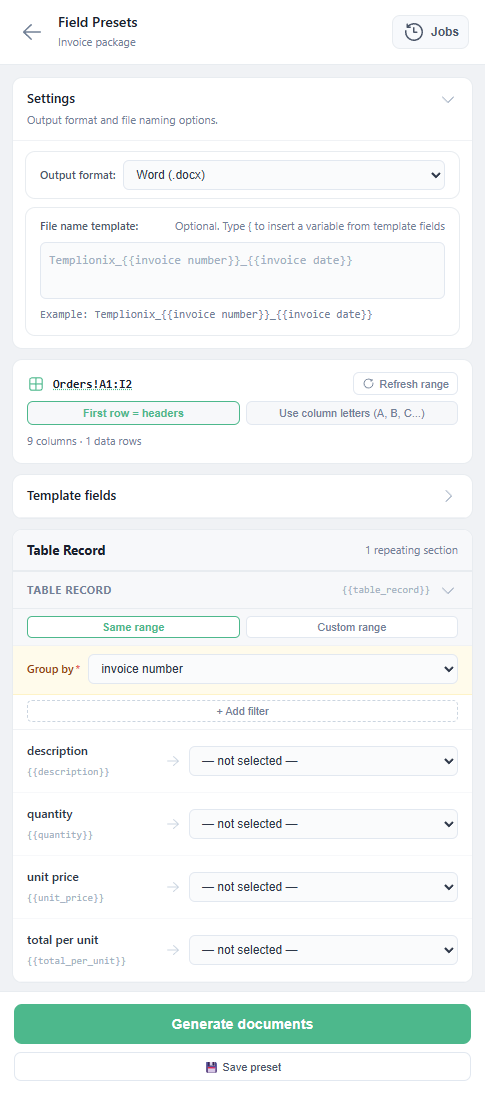
In this mode:
- Select the main Excel range.
- Map the regular template fields.
- In the repeating section, keep Same range selected.
- Choose a Group by column, for example
invoice number. - Map repeating fields such as
description,quantity,unit price, andtotal per unit.
The Group by column tells TemplioniX which rows belong to the same generated document. For example, all rows with the same invoice number become one invoice with multiple line items.
Custom range from another sheet
Choose Custom range when the main document data and repeating rows are stored separately. For example:
| Sheet | Contains |
|---|---|
Orders | invoice number, invoice date, client name, total |
Line_Items | invoice number, description, quantity, unit price, total per unit |
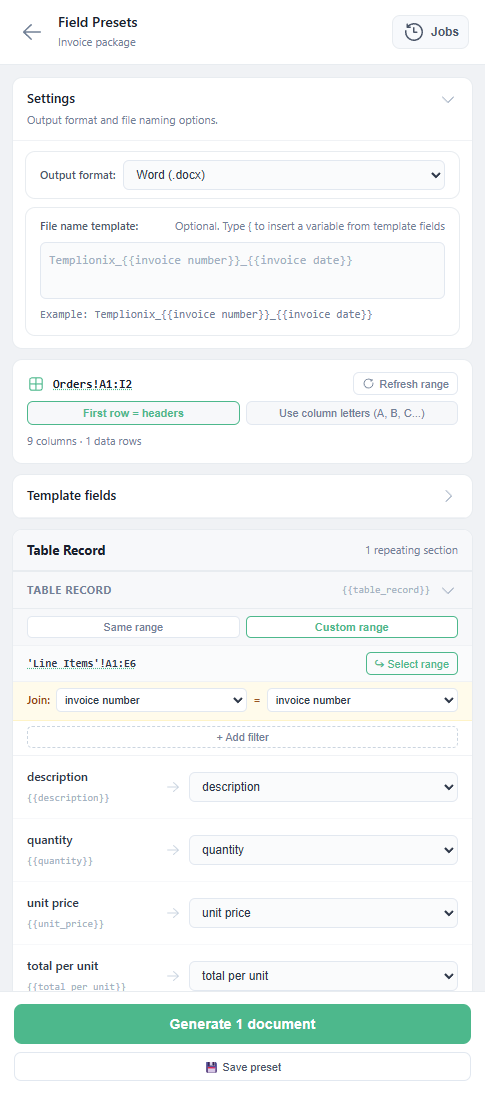
In this mode:
- Select the main range in Excel, for example
Orders!A1:I2. - Open the template mapping screen.
- In the repeating section, choose Custom range.
- Select the repeating range in Excel, for example
'Line_Items'!A1:E6. - Click Select range in the add-in.
- Configure Join columns.
The join connects the main row with matching repeating rows. In the example above:
| Main column | Section column |
|---|---|
invoice number | invoice number |
TemplioniX uses this join to find all line items for each invoice.
After the join is configured, map the repeating fields from the custom range, such as description, quantity, unit price, and total per unit.
Optional filters
Use Add filter when only some repeating rows should be included. Filters can limit rows by column value, text match, empty values, or numeric comparisons.
Filters in Repeating Sections
Filters let you control which Excel rows are included inside a repeating section. This is useful when the selected range contains more rows than should appear in the generated document.
For example, an invoice template may have a repeating section for line items, but you may want to include only rows where:
quantityis greater than0unit priceis greater than0descriptioncontains a specific wordtotal per unitis not empty
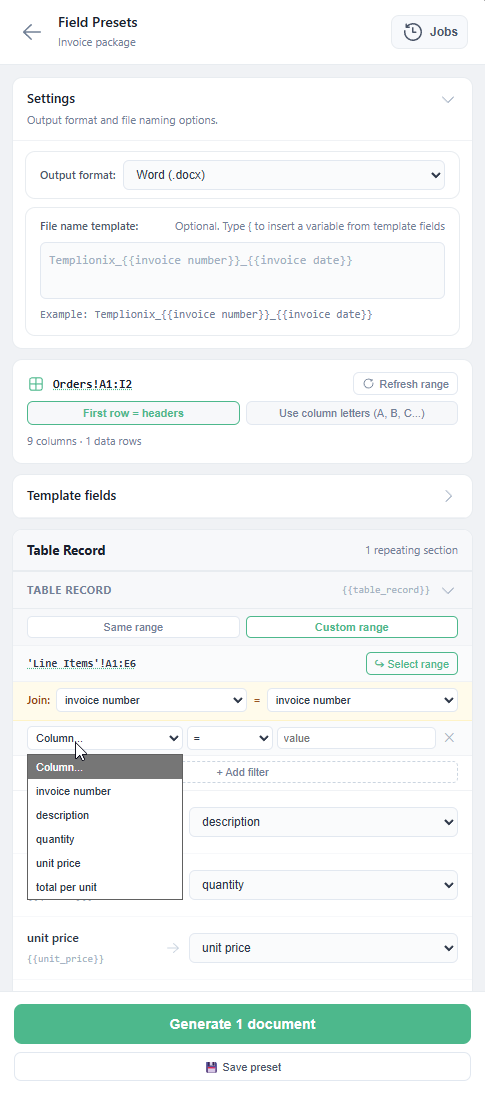
Add a Filter
- Open the template mapping screen.
- Find the repeating section, for example
Table Record. - Click
+ Add filter. - Select the Excel column that should be checked.
- Choose the comparison type.
- Enter a value if the comparison requires one.
The filter is applied only to rows inside that repeating section.
Comparison Types
You can use different comparison types depending on the column data.
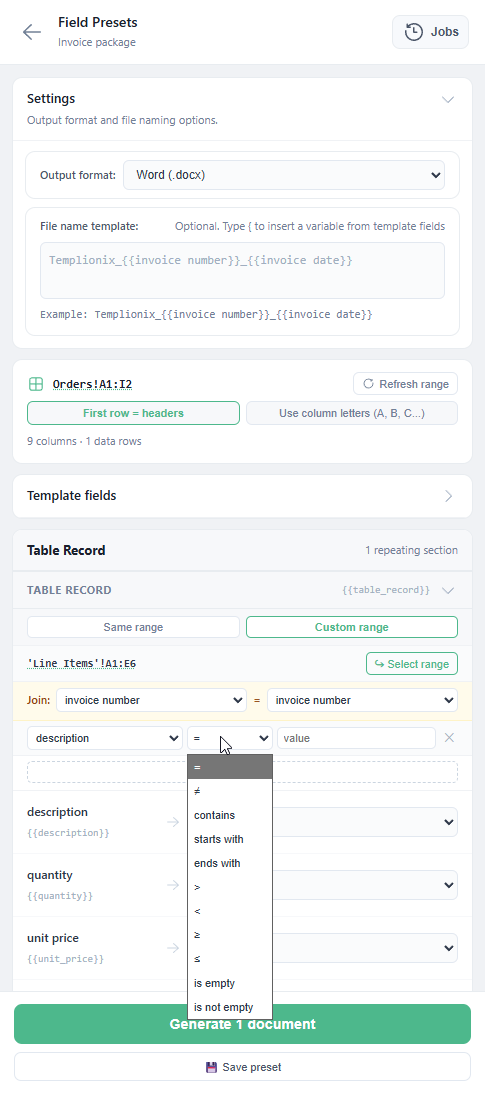
| Comparison | Use when |
|---|---|
= | The value must match exactly. |
!= | The value must be different. |
contains | The cell must contain the entered text. |
starts with | The value must begin with the entered text. |
ends with | The value must end with the entered text. |
> | The numeric value must be greater than the entered value. |
< | The numeric value must be less than the entered value. |
>= | The numeric value must be greater than or equal to the entered value. |
<= | The numeric value must be less than or equal to the entered value. |
is empty | The cell must be empty. |
is not empty | The cell must contain any value. |
Example
Suppose your Excel range contains invoice rows:
| invoice number | description | quantity | unit price |
|---|---|---|---|
| INV-1001 | Consulting | 2 | 600 |
| INV-1001 | Draft line | 0 | 0 |
| INV-1001 | Support | 1 | 250 |
For the Table Record repeating section, you can add this filter:
| Field | Comparison | Value |
|---|---|---|
quantity | > | 0 |
Only rows with quantity > 0 will be inserted into the repeating section.
You can also add a text filter:
| Field | Comparison | Value |
|---|---|---|
description | contains | Support |
This includes only rows where the description contains the selected text.
Using Filters with Same Range
When the repeating section uses Same range, filters are applied to the same Excel range that is used for the main document data.
In this mode:
Group bydefines which rows belong to the same generated document.- Filters define which rows are included inside the repeating section.
- Only matching rows are added to the repeated content.
For example, if Group by is set to invoice number, TemplioniX first groups rows by invoice number, then applies the repeating section filters inside each invoice group.
Using Filters with Custom Range
When the repeating section uses Custom range, filters are applied to the custom range selected for that section.
This is useful when main document data and repeating section data are stored in different sheets.
For example:
- Main range:
Orders!A1:I2 - Repeating section range:
'Line_Items'!A1:E6 - Join by:
invoice number - Filter:
quantity > 0
TemplioniX joins rows by invoice number, then includes only item rows that match the filter.
Notes
Filters are combined together. If you add multiple filters, a row must match all of them to be included in the repeating section.
For example:
| Field | Comparison | Value |
|---|---|---|
quantity | > | 0 |
unit price | > | 0 |
Only rows where quantity and unit price are greater than 0 will be included.