Map Fields
On the mapping screen, TemplioniX reads the selected Excel range and detects the available columns. Match each required template field with the corresponding Excel column.
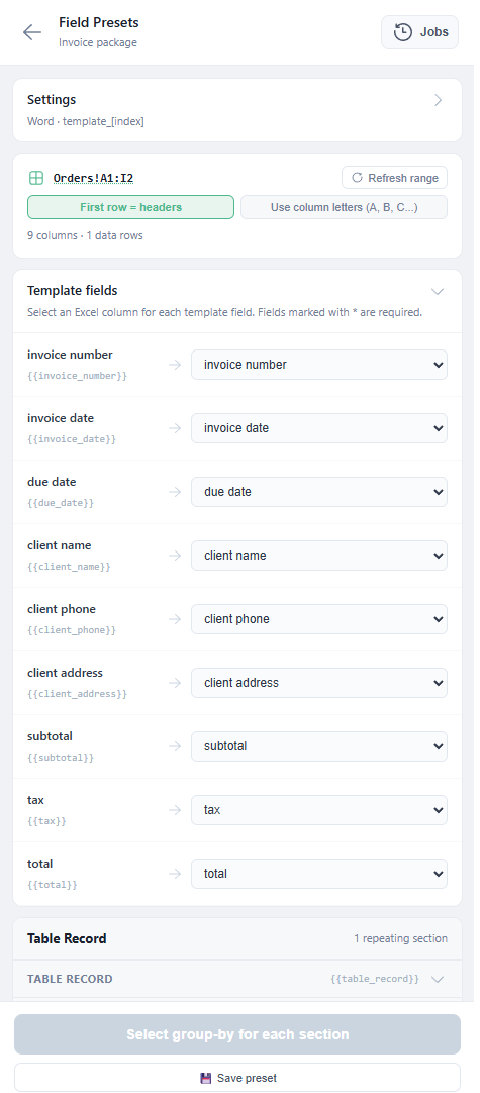
The example above maps:
| Template field | Excel column |
|---|---|
| invoice number | invoice number |
| invoice date | invoice date |
| due date | due date |
| client name | client name |
| client phone | client phone |
| client address | client address |
| subtotal | subtotal |
| tax | tax |
| total | total |
If the first row contains headers, keep First row = headers enabled. If your selected range has no header row, switch to column letters.
Required fields are marked with *. A document cannot be generated until all required fields are mapped.
If the template contains a table or list, configure it in the Repeating Sections step. Repeating sections can use the same selected range or a custom range from another sheet.