Quick Start
Use this guide to complete your first end-to-end document generation flow in Templionix.
By the end, you will have:
- one Word template uploaded,
- fields mapped to sample data,
- and one generated
.docxdocument downloaded.
Before you begin
Prepare the following:
- Access to the Templionix application.
- A sample Word
.docxtemplate with content controls. - Sample data (for example, customer name, dates, and totals).
If you do not have a template yet, start with Create your first template.
Step 1: Open the templates
- Sign in to Templionix.
- Go to the templates page.

Step 2: Upload your template
- Open the template management area.
- Click Upload template.
- Select your
.docxfile. - Save the template with a clear name and version.
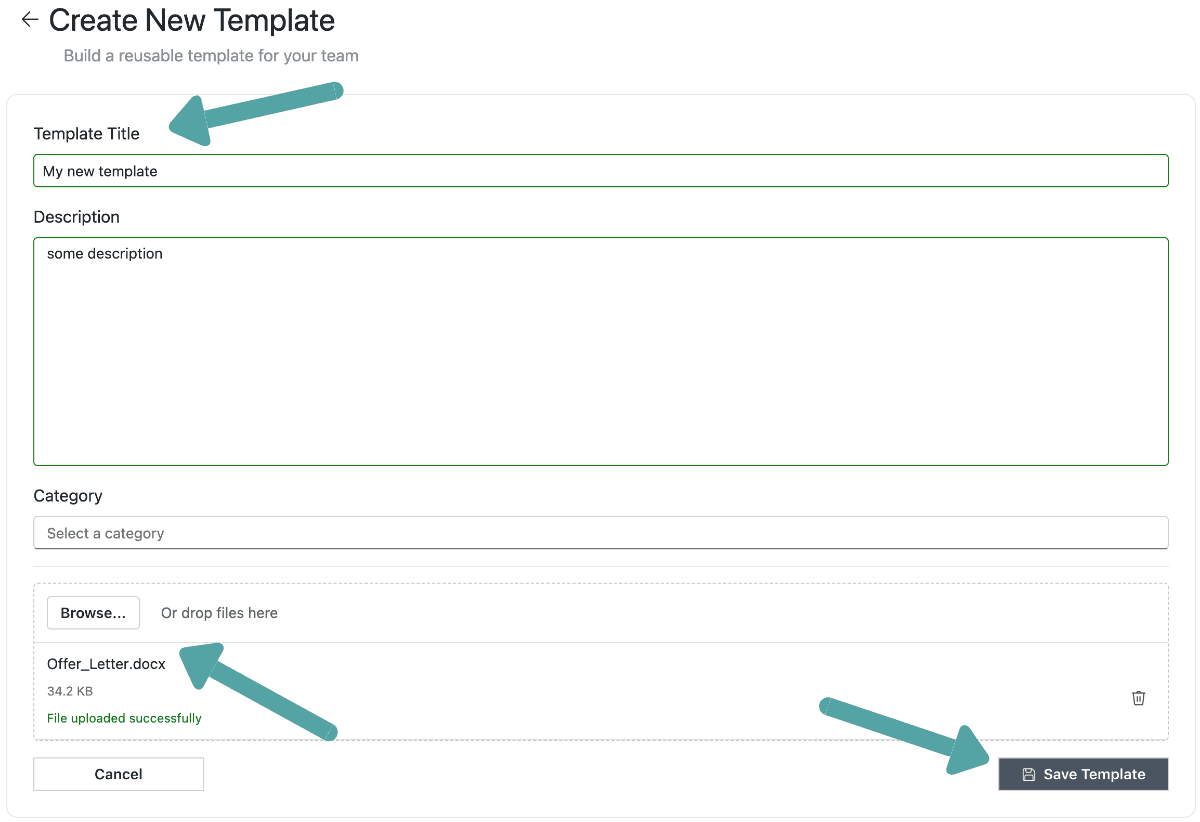
Tip: Use meaningful template names like Sales-Contract-v1.
Step 3: Check template fields (optional)
- Go to field mapping.
- Check that all required fields are present.
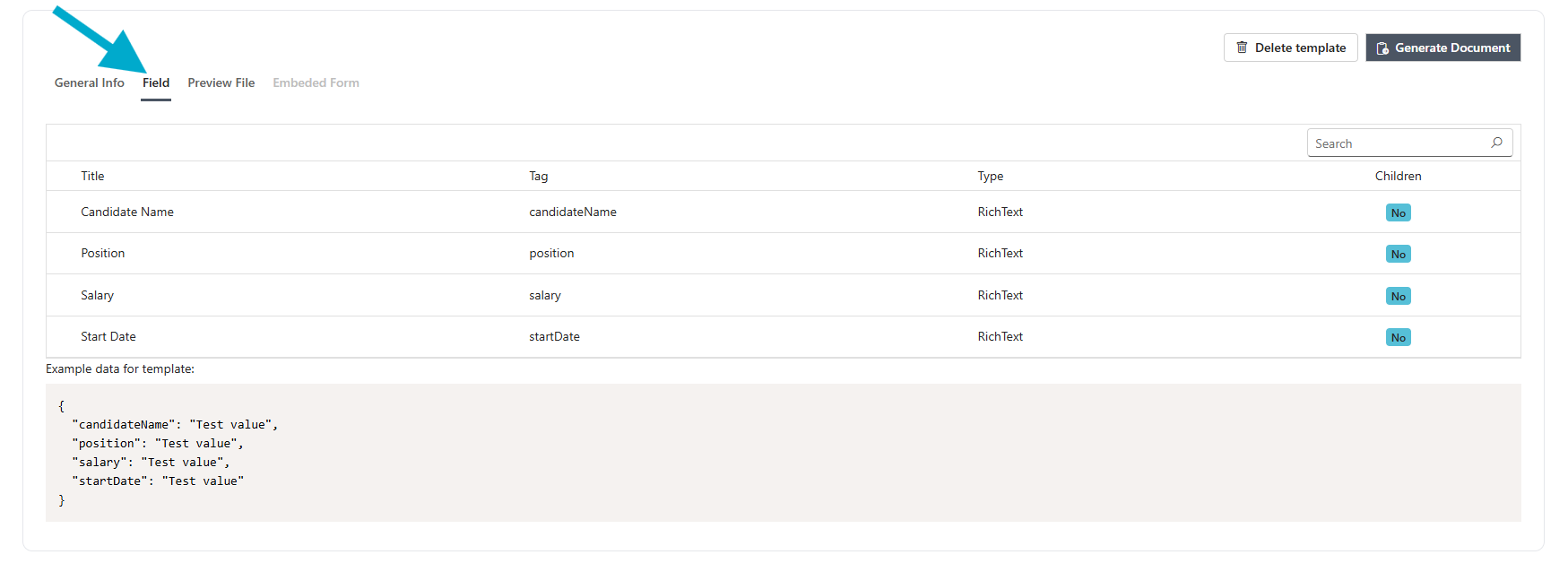
If mapping is new for you, read Mapping fields.
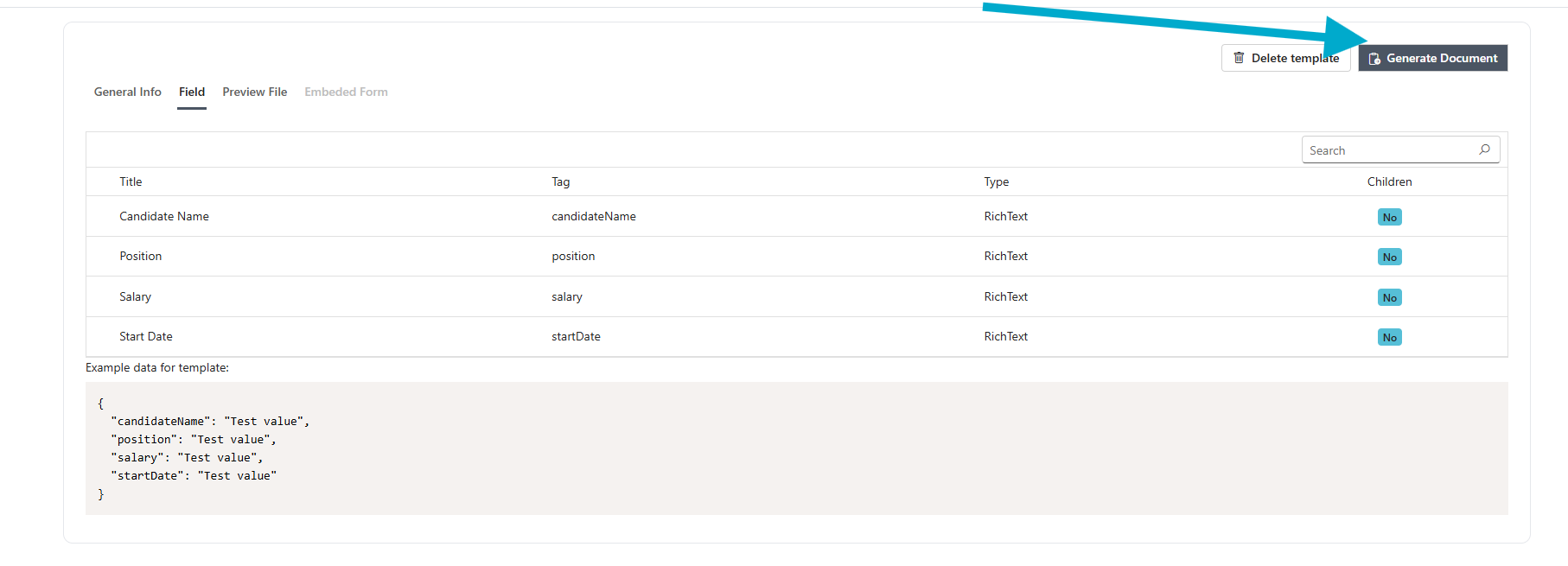
Step 4: Run generation
- Click Generate Dcoument.
- Provide input data.
- Run generation.
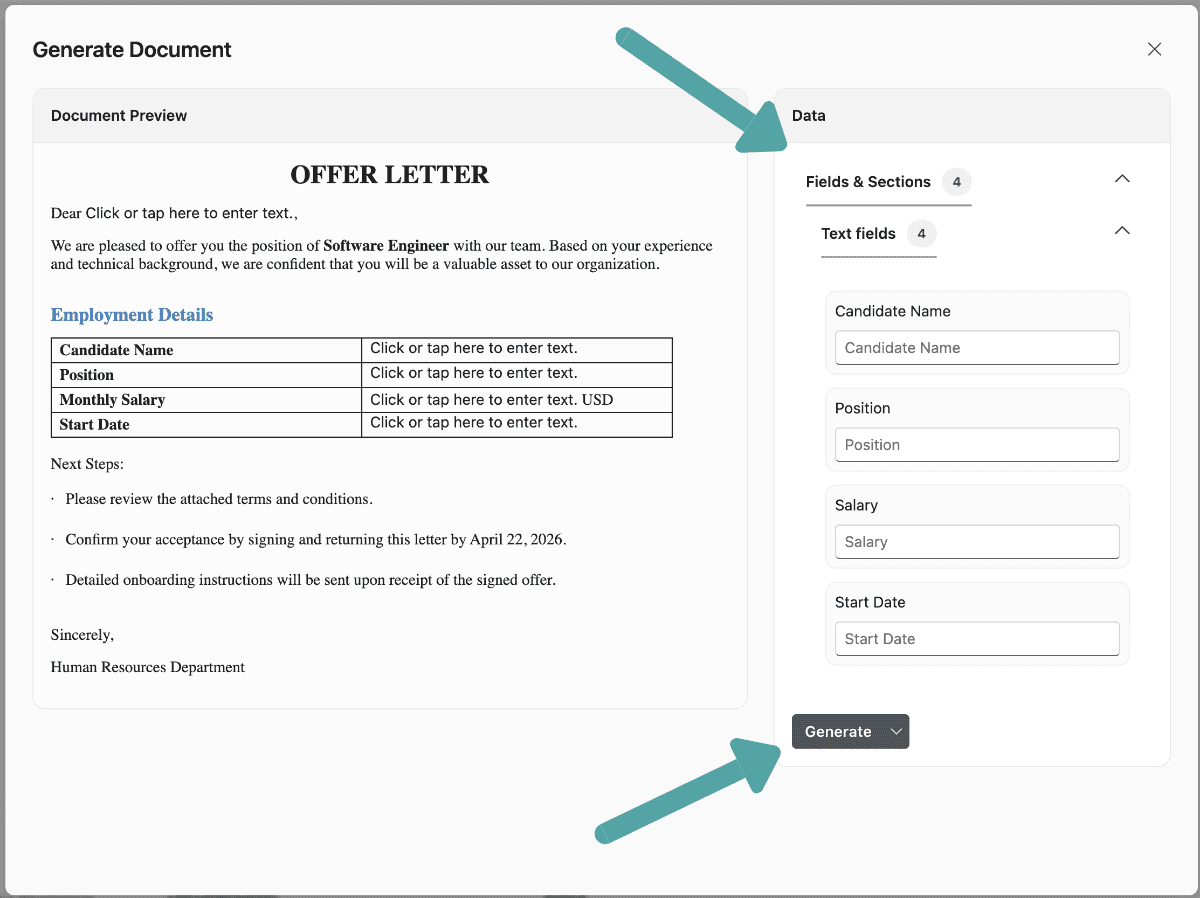
The document will be automatically downloaded to your system.
Step 5: Download and review output
- Open document in Word.
- Verify:
- fields are populated correctly,
- formatting is preserved,
- no placeholders remain empty unexpectedly.
Expected result
You should now have a production-style generated document built from your template and input data.
Once this works for one record, move to integrations.
Next steps
- API Integrations for a more detailed generation walkthrough.
- Working with templates to improve structure and maintainability.
- Troubleshooting if a run fails.